How to manage your SocialYak subscription
Change plans as your client list grows, update the card on file, download invoices or cancel, all from the secure Stripe billing portal.
Before you start
- Owner or admin role
- A paid Growth or Agency subscription
Preview voice Narrated with a local preview voice; the final recording replaces it.
Transcript
Change your plan, update your card or download invoices from Billing.
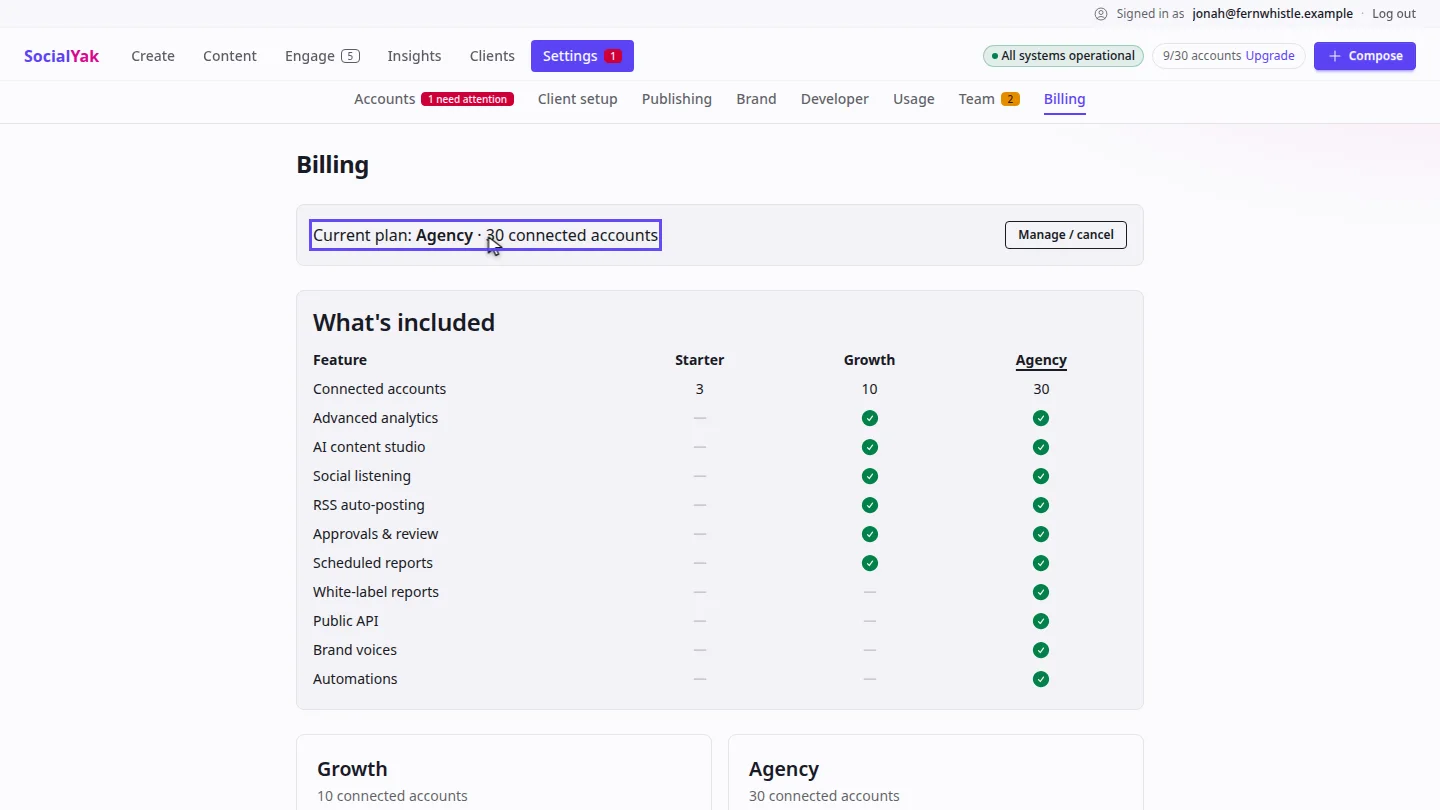
In Settings, open Billing. The top of the page shows your current plan and how many accounts it can connect.
Select Manage or cancel. The Stripe billing portal opens, where you can update your card, download invoices or cancel.
Steps
Check your plan ▶ 0:06
Select Settings, then Billing. Current plan shows your plan and its connected-account limit.
Open the billing portal ▶ 0:14
Select Manage / cancel. In the Stripe portal, update your payment method, download invoices or cancel.
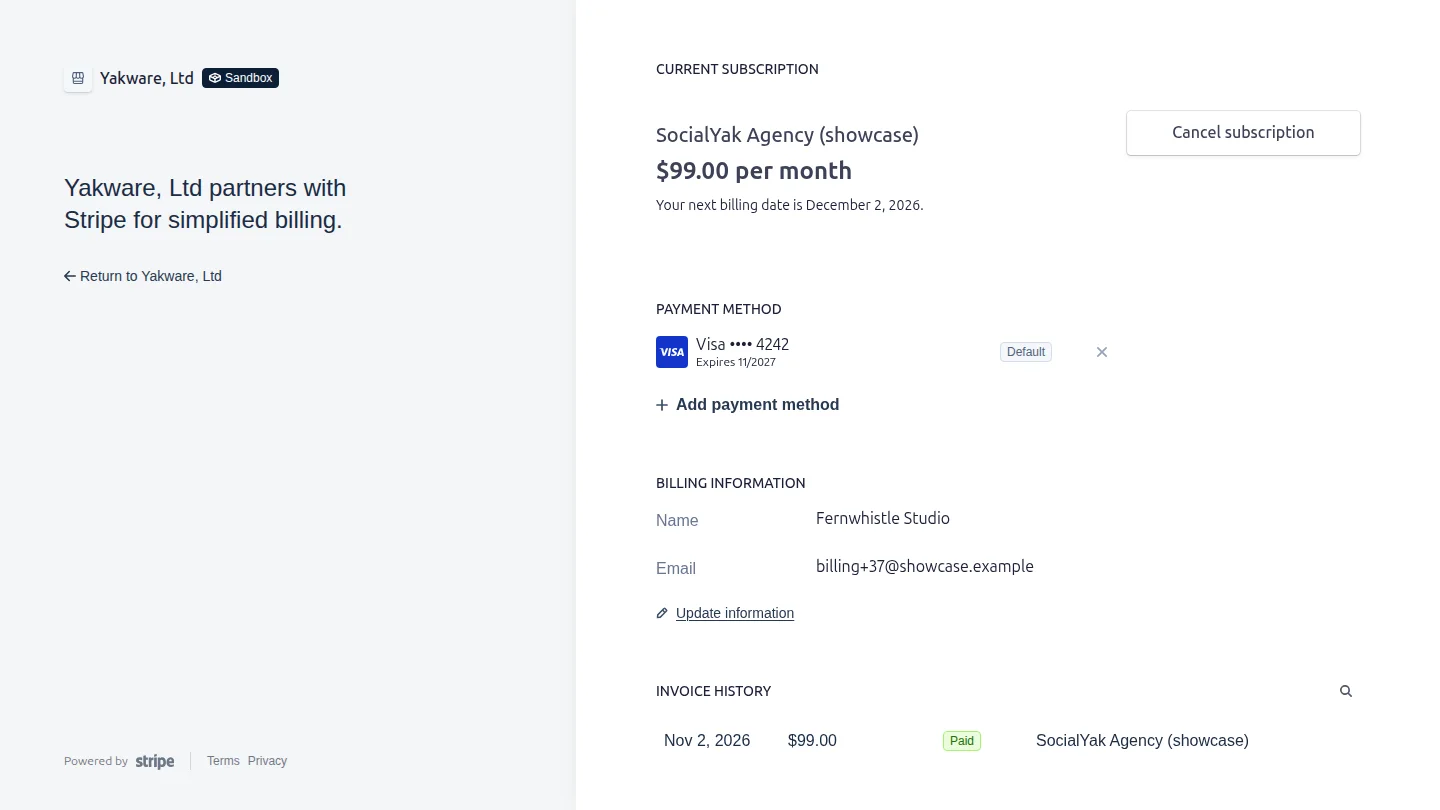
ResultThe Stripe billing portal opens for your workspace; changes you make there apply to SocialYak.
Next steps
Updated 2026-10-26
billing invoices change plan cancel subscription update card