How to invite a teammate in SocialYak
Bring a designer or a second social manager into the workspace instead of sharing one login. Each person signs in as themselves, and you decide whether they can approve posts and manage the team.
Before you start
- Owner or admin role in SocialYak
Preview voice Narrated with a local preview voice; the final recording replaces it.
Transcript
Give a teammate their own SocialYak login, with the access they need.
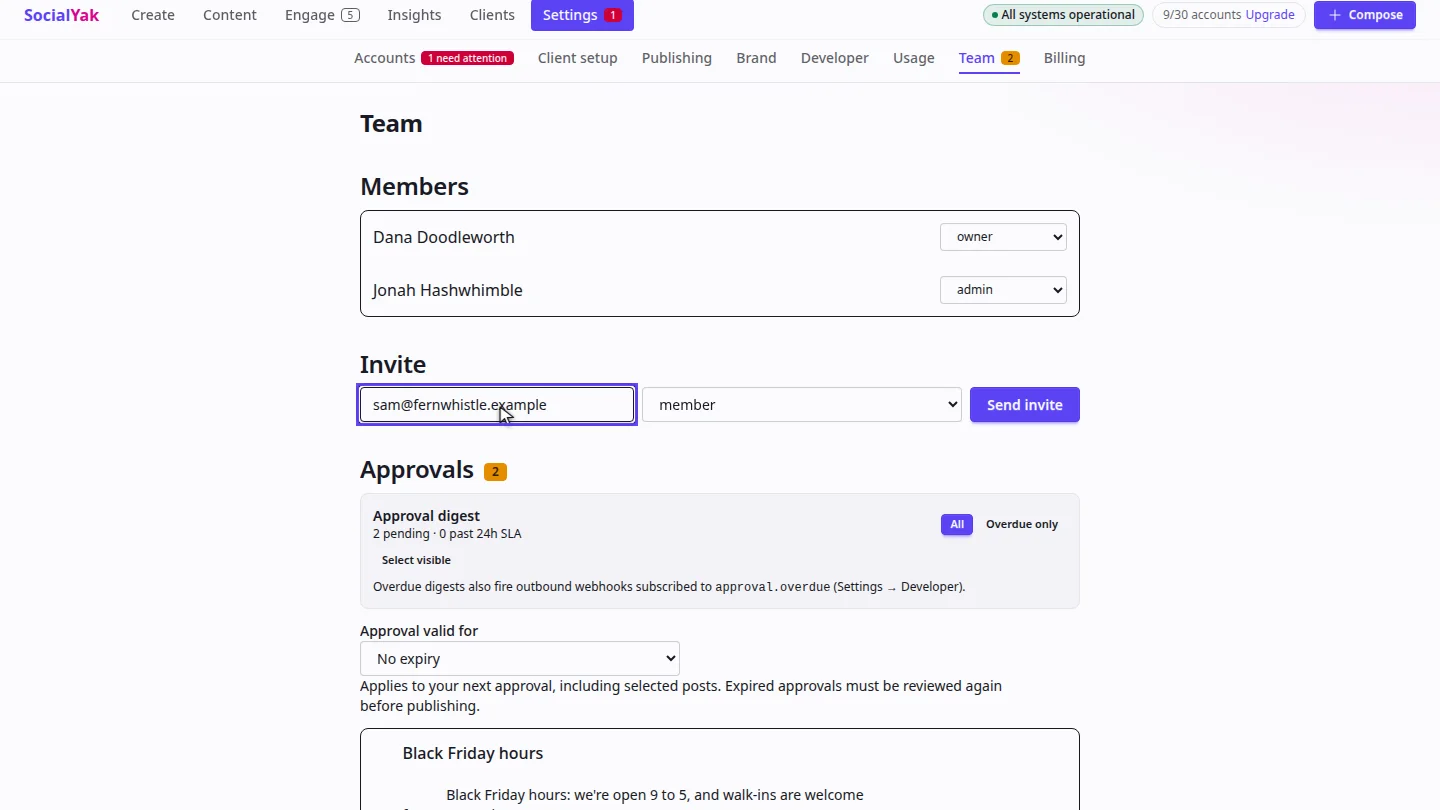
In Settings, open Team. Under Invite, enter your teammate's work email address.
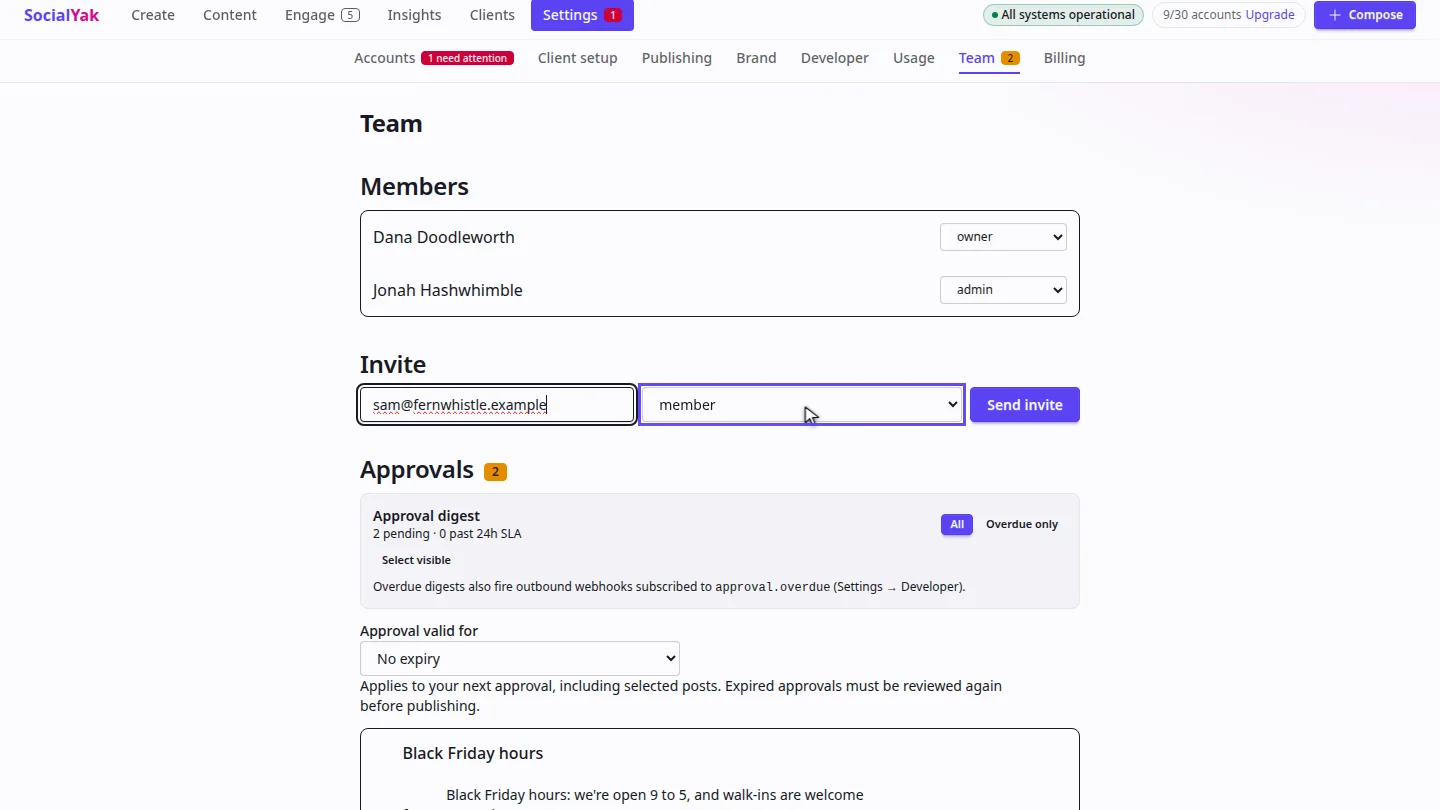
Leave the role as member for someone who writes and schedules posts. Choose admin if they should also approve posts and manage the team.
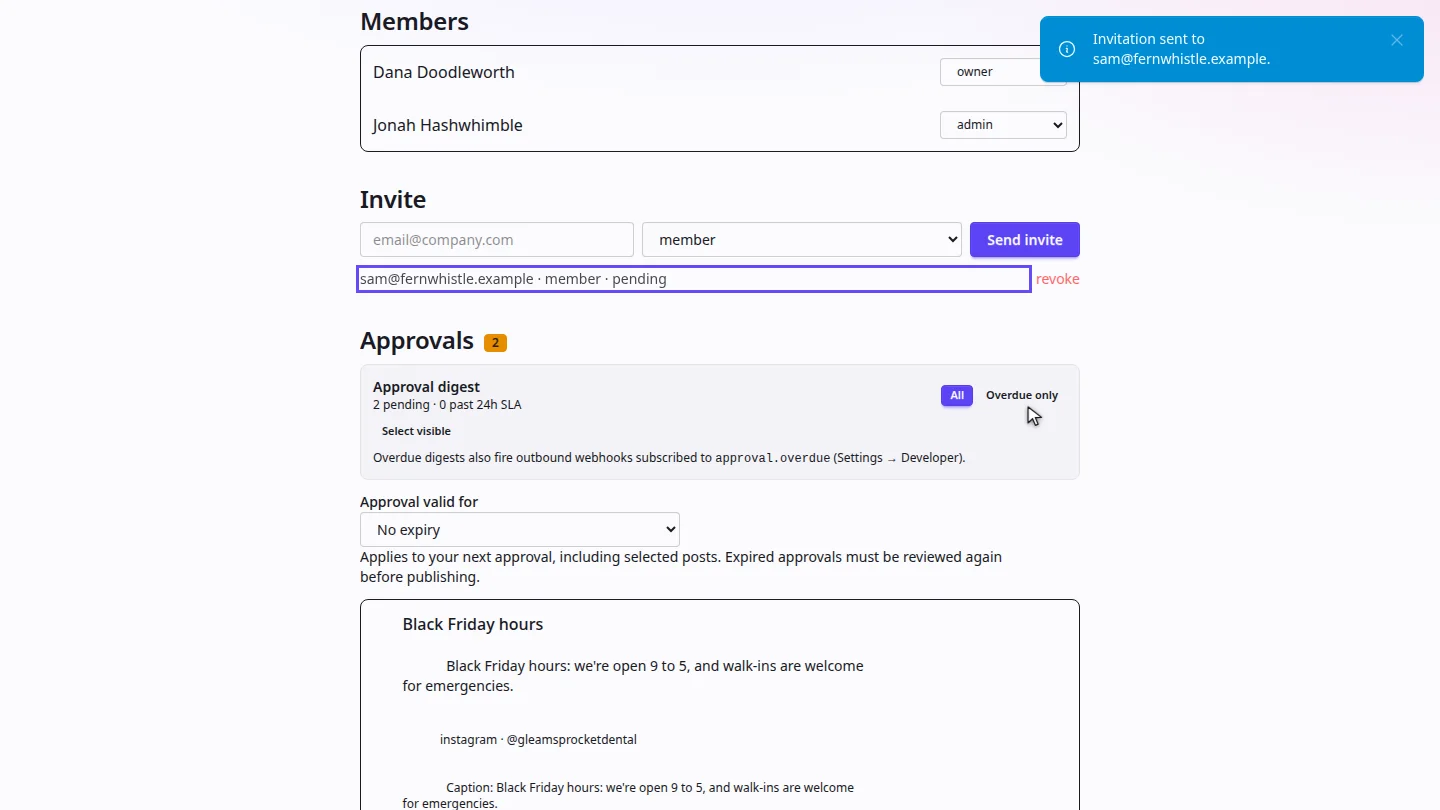
Select Send invite. SocialYak emails them a link, and the invitation is listed as pending until they accept it.
Steps
Enter their email ▶ 0:06
Select Settings, then Team. Under Invite, enter your teammate's email address.
Choose a role ▶ 0:12
Keep member, or choose admin for someone who approves posts and manages the team.
Send the invitation ▶ 0:22
Select Send invite. The invitation appears as pending until it's accepted.
Next steps
Updated 2026-10-26
add user team member invite colleague roles permissions