How to monitor a keyword in SocialYak
People talk about your clients without tagging them. A keyword monitor searches the networks you choose for a name or phrase, and lists each mention with its sentiment so you can join the conversation.
Before you start
- A Growth or Agency plan
- A connected account on the network you want to search
Preview voice Narrated with a local preview voice; the final recording replaces it.
Transcript
Find out when people mention a client, even when they don't tag the account.
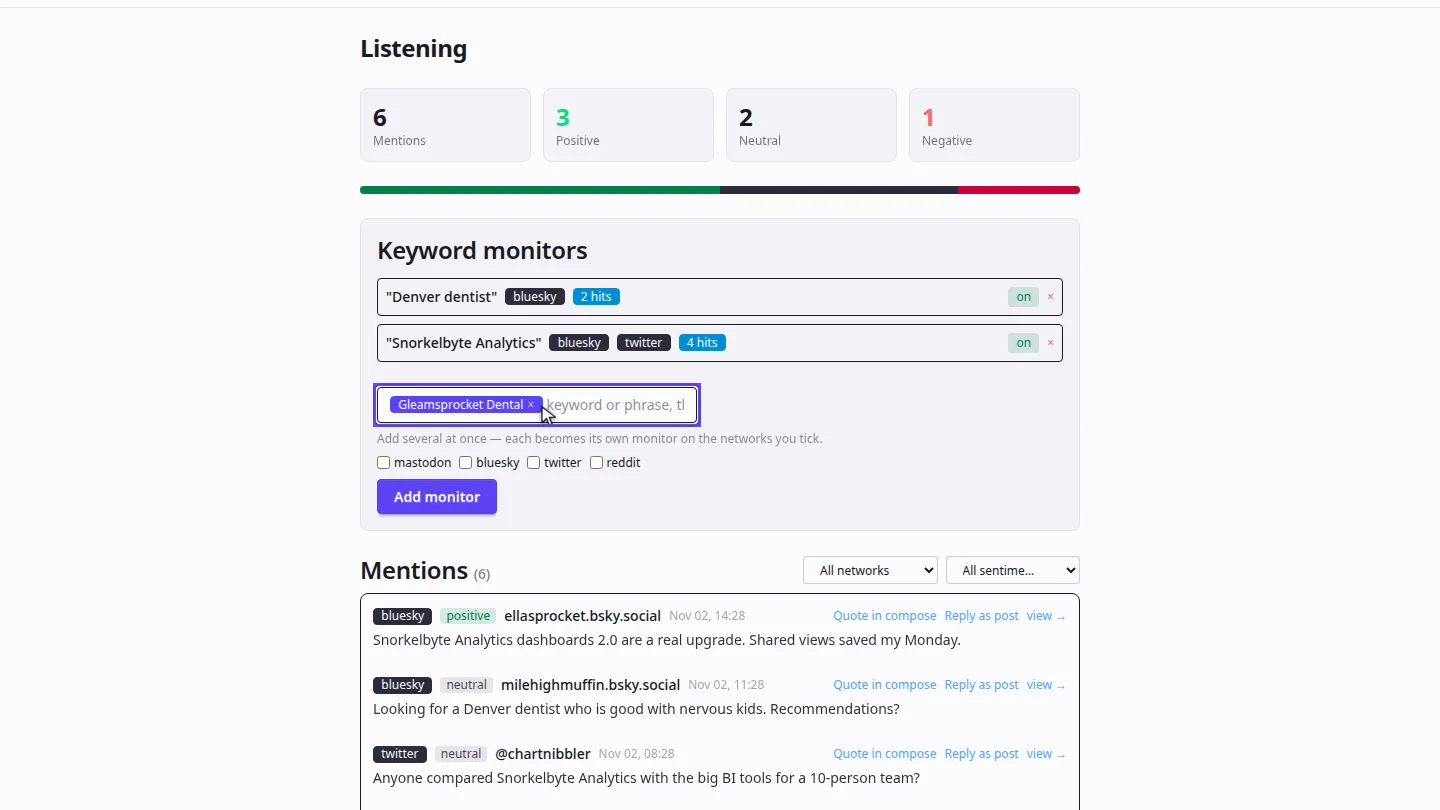
On Listening, type the keyword or phrase and press Enter. You can add several at once; each becomes its own monitor.
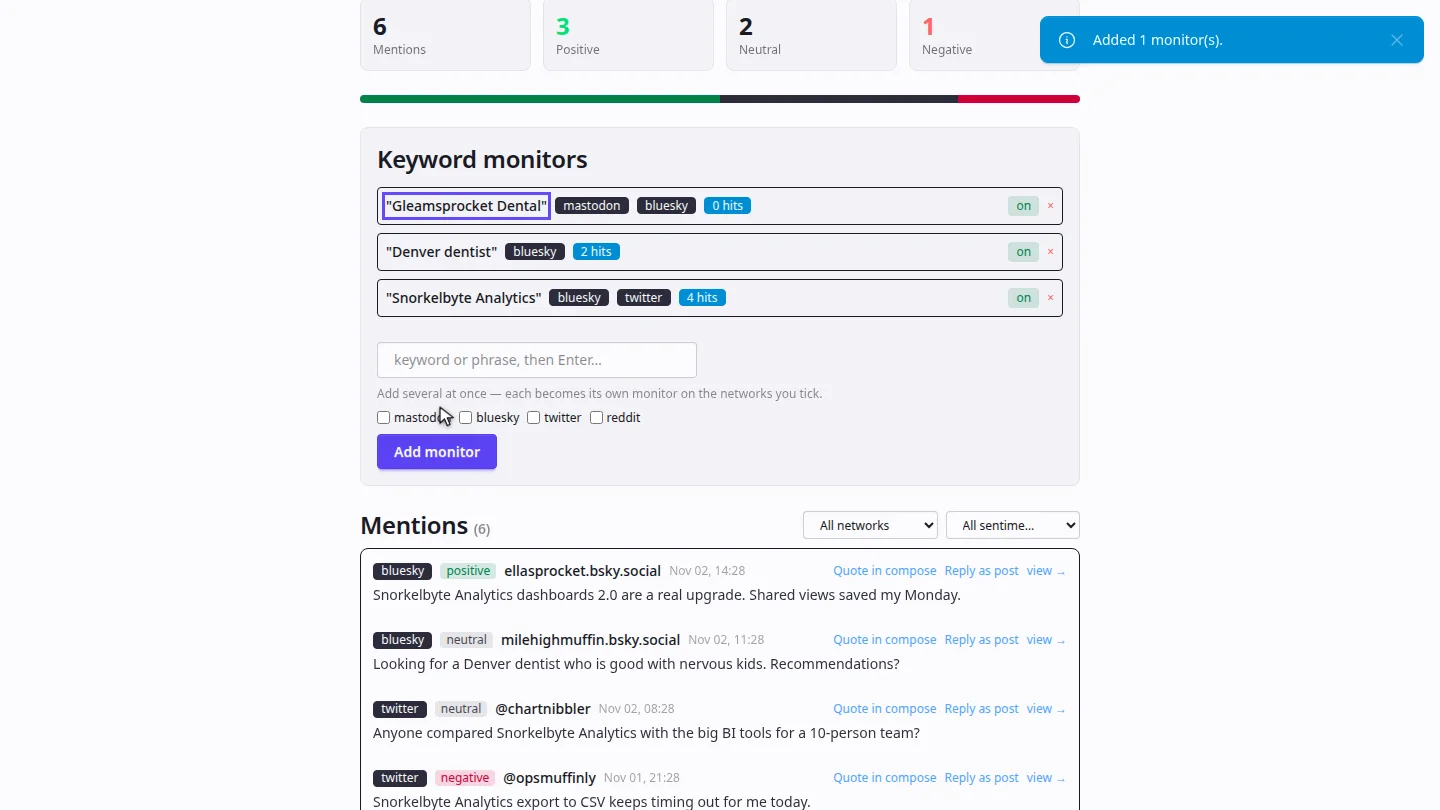
Tick the networks to search, then select Add monitor. The new monitor joins the list with its hit count.
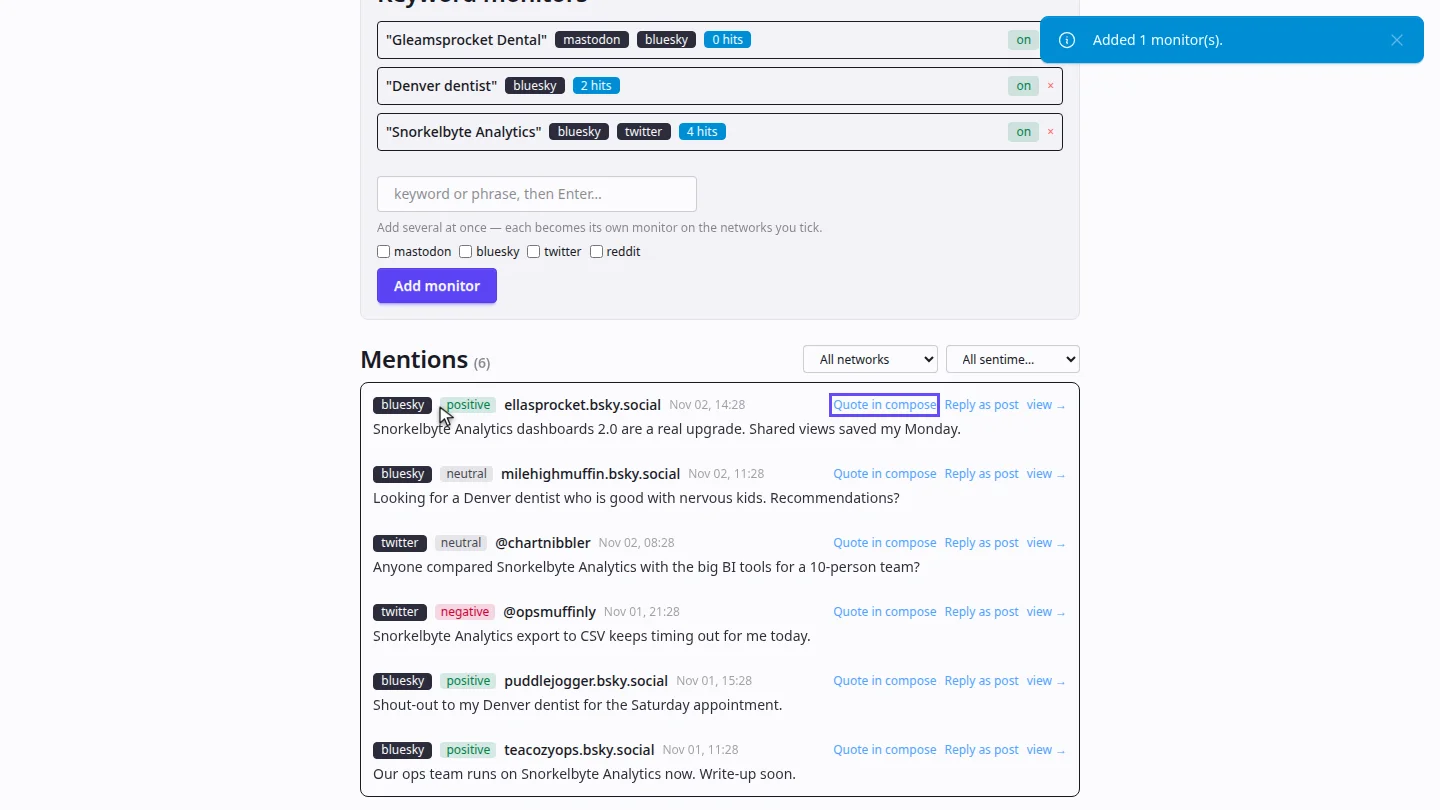
Mentions appear in the list as they're found, marked positive, neutral or negative. Select Quote in compose to respond with a post.
Steps
Enter the keyword ▶ 0:06
In Engage, open Listening. Type a keyword or phrase and press Enter.
Choose networks and add it ▶ 0:15
Tick the networks to search, then select Add monitor.
Read the mentions ▶ 0:23
Under Mentions, filter by network or sentiment. Select Quote in compose to respond.
Next steps
Updated 2026-10-26
social listening brand mentions keyword tracking sentiment