How to reschedule a post on the calendar in SocialYak
Plans change: a client moves an event, or two posts land on the same morning. Move a scheduled post to a new day and time from the content calendar, without rewriting it.
Before you start
- A scheduled post
Preview voice Narrated with a local preview voice; the final recording replaces it.
Transcript
Move a scheduled post to a new day and time, right from the content calendar.
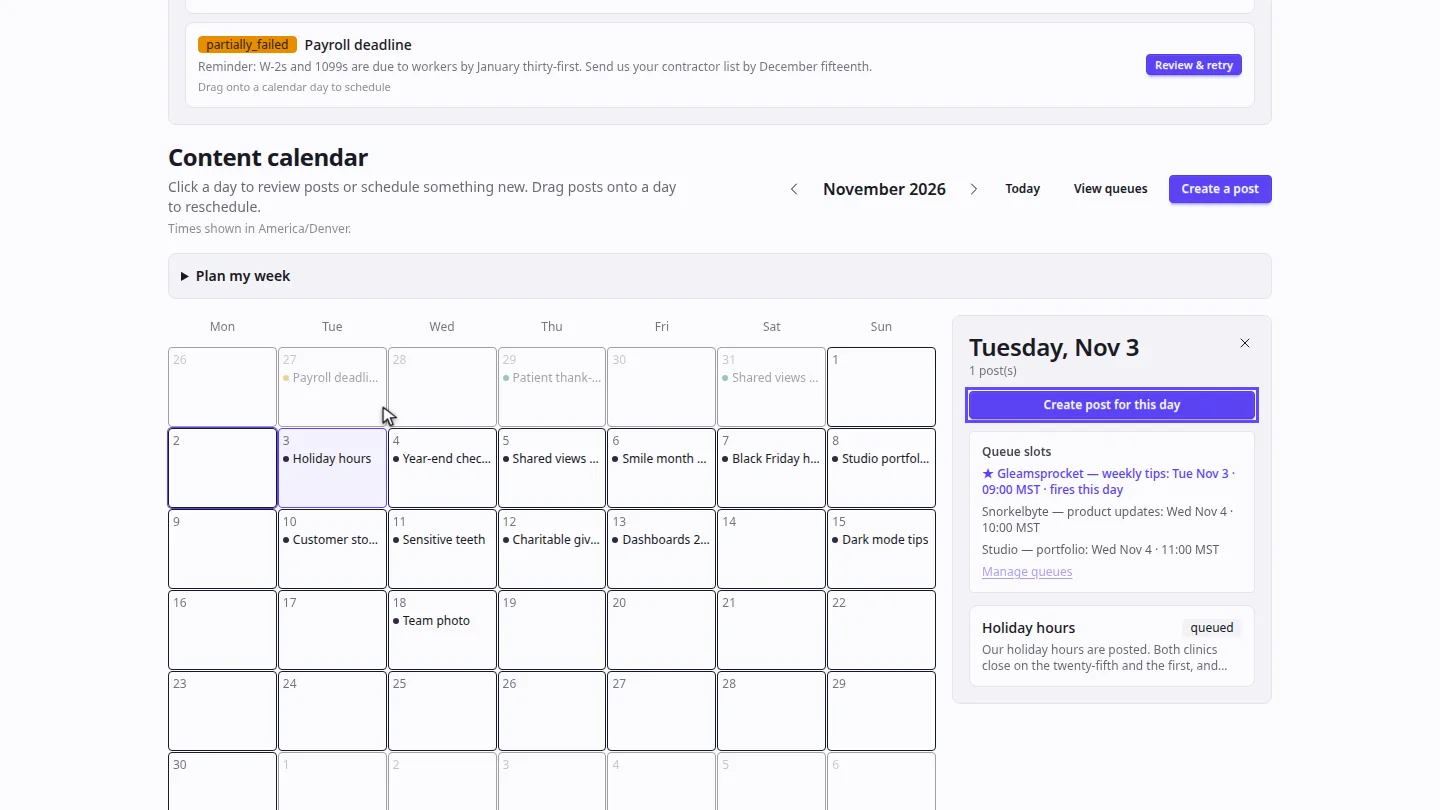
On the content calendar, select the day with the post. A panel opens beside the calendar with everything planned for that day.
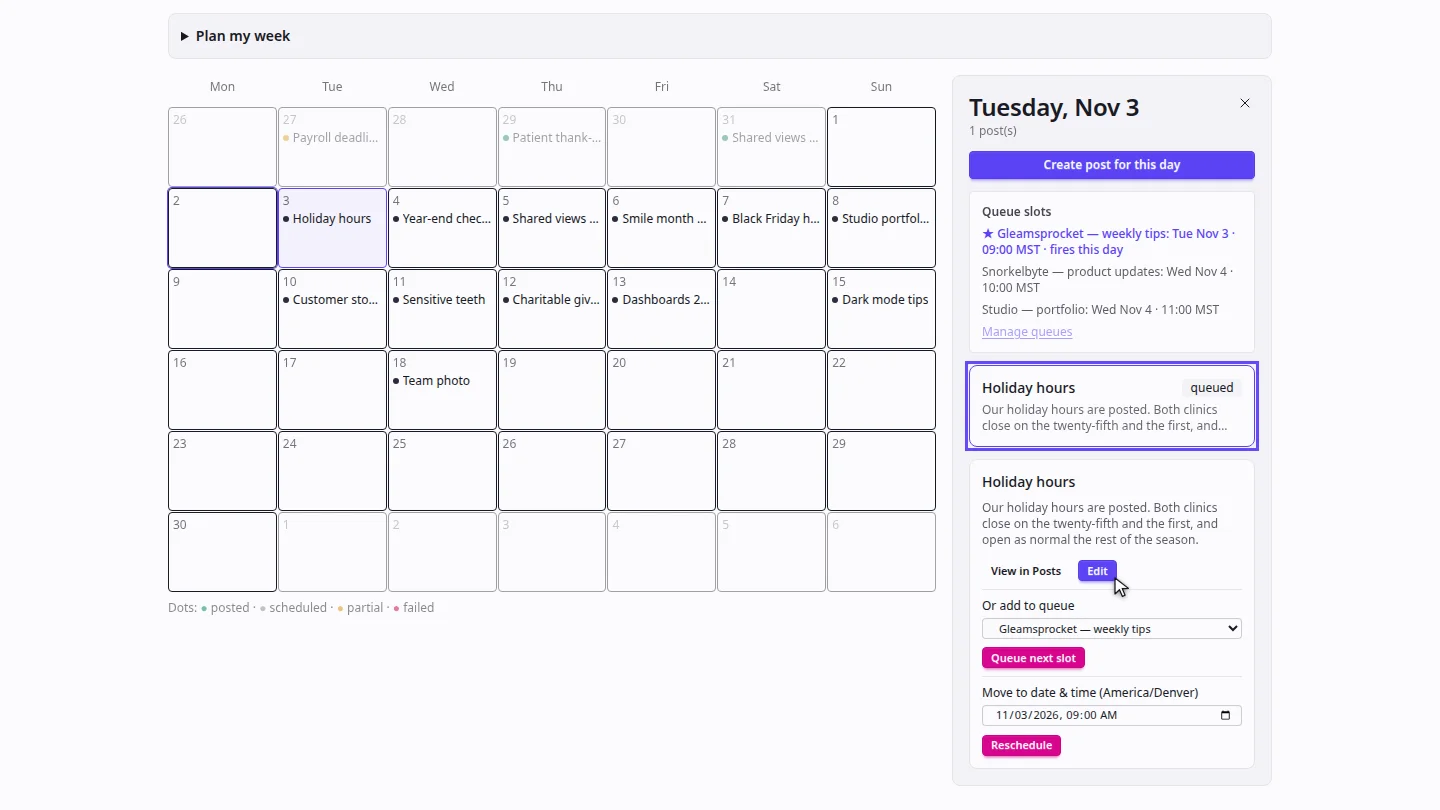
Select the post in the panel. Its text appears, with options to edit it, queue it, or move it.
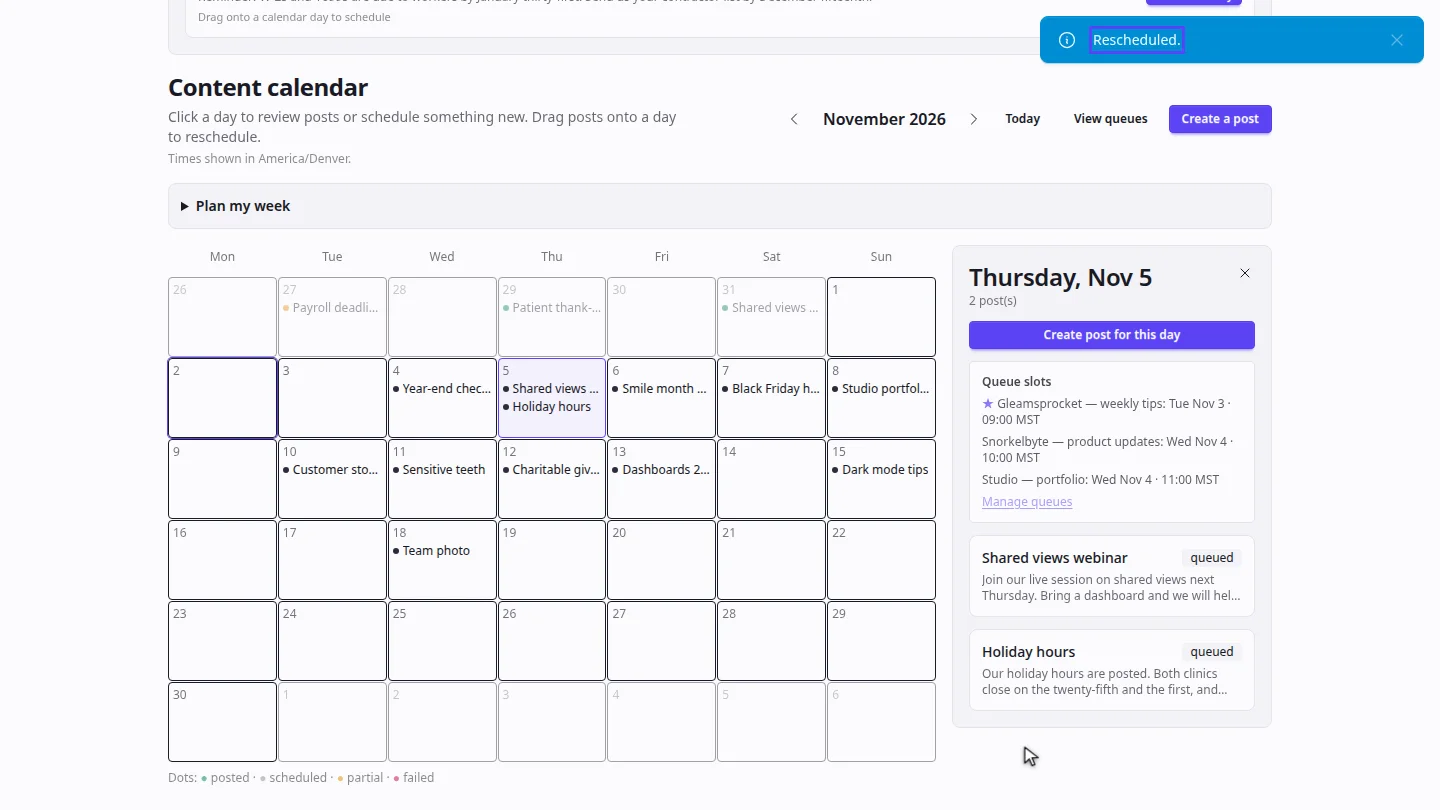
Under Move to date and time, pick the new date and time, and select Reschedule. The panel jumps to the new day, with the post on it.
Steps
Open the day ▶ 0:06
In Content, open Calendar and select the day that has the post.
Select the post ▶ 0:16
In the day panel, select the post.
Move it ▶ 0:23
Under Move to date & time, set the new date and time, then select Reschedule.
Next steps
Updated 2026-10-26
move post change post date content calendar reschedule