How to schedule a post in SocialYak
Write a client's post once, send it to all of their accounts, and pick the exact time it goes out. SocialYak publishes it then, so nobody has to be online at 9 a.m.
Before you start
- At least one connected account
Preview voice Narrated with a local preview voice; the final recording replaces it.
Transcript
Schedule one post to all of a client's accounts, for the exact time you choose.
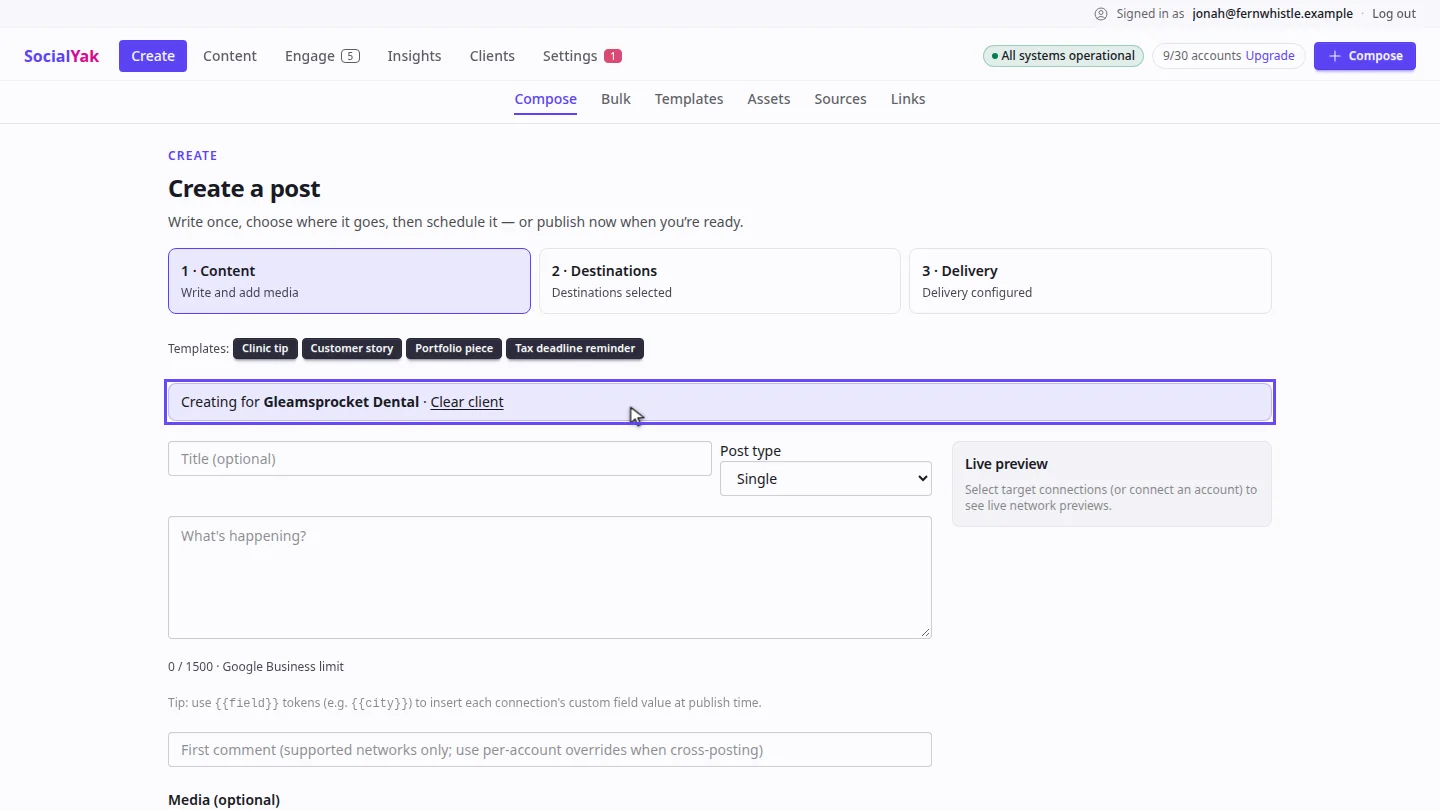
On Clients, select Compose on the client's card. The composer opens for that client.
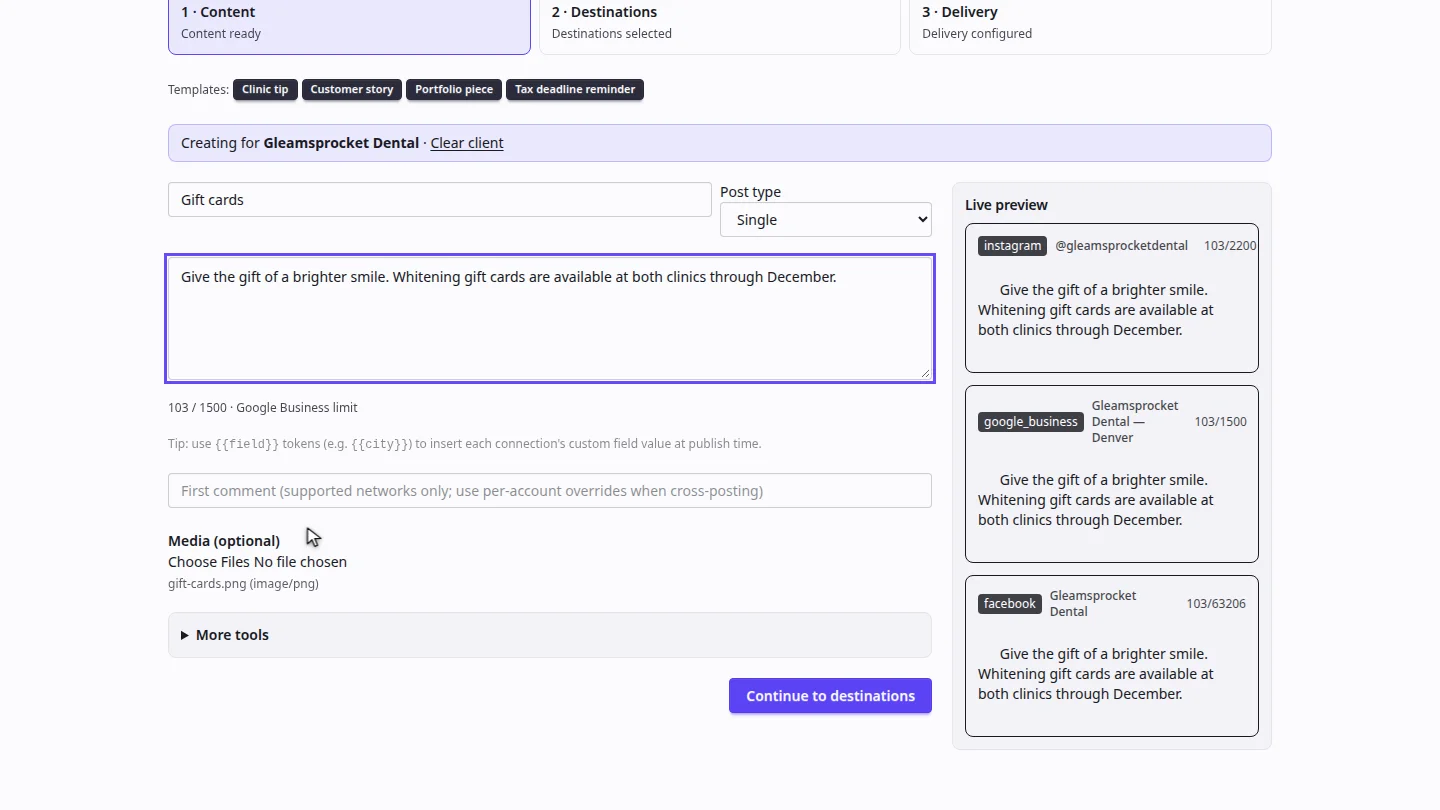
Add a title for your team, write the post, and attach an image. Instagram posts need an image, so add one before you continue.
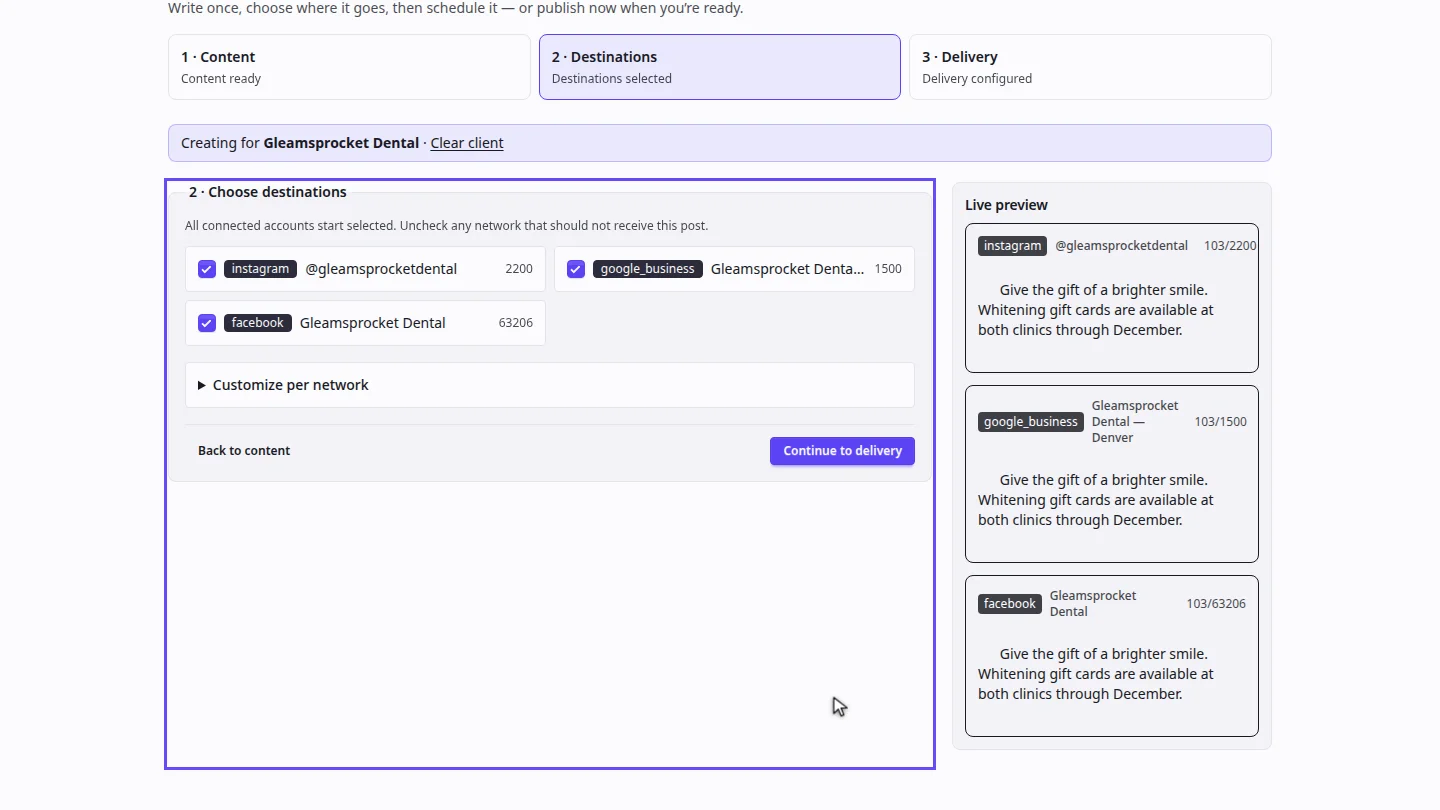
Select Continue to destinations. The client's three accounts are ticked; untick any that shouldn't get it.
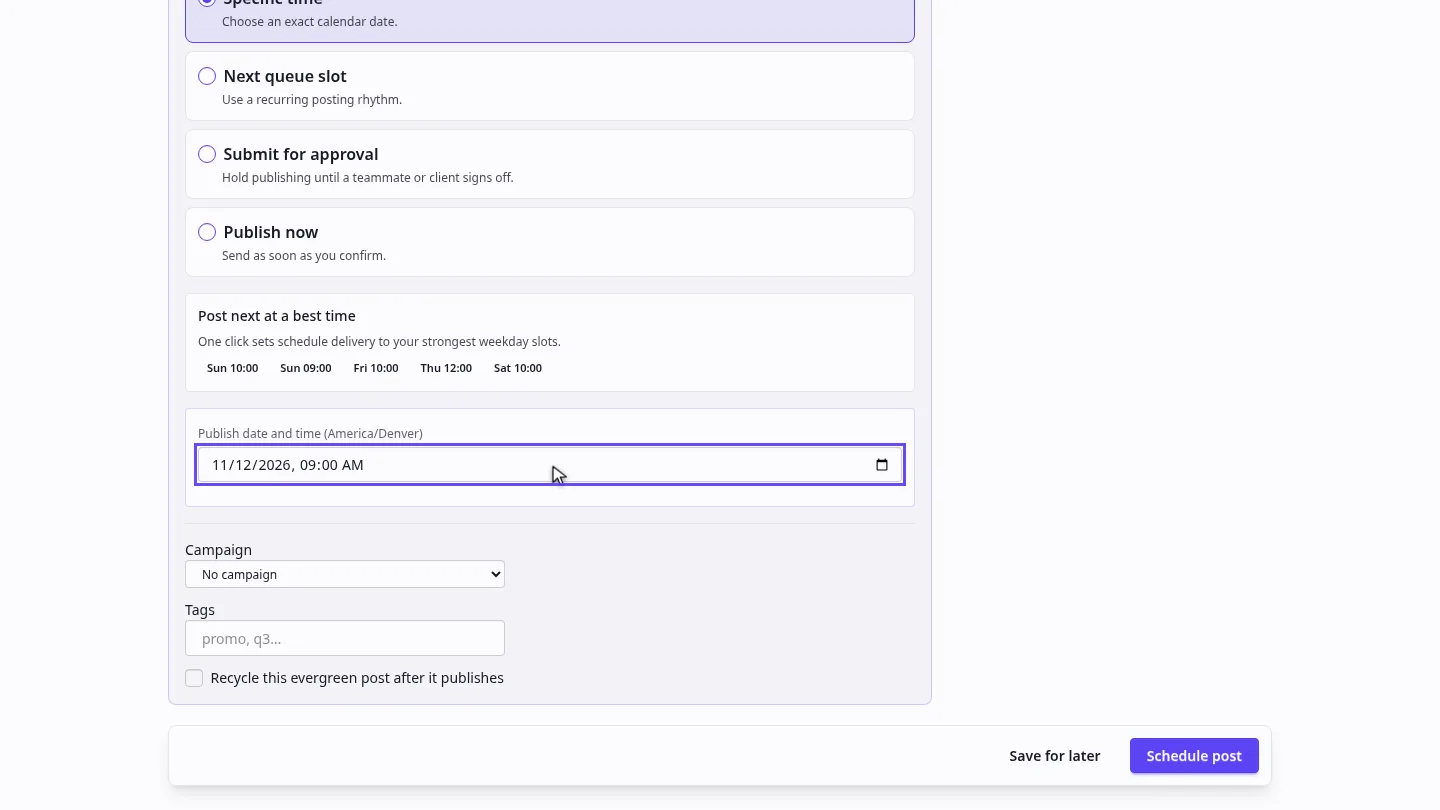
Select Continue to delivery, choose Specific time, and set the date and time. Times are in your workspace's time zone.
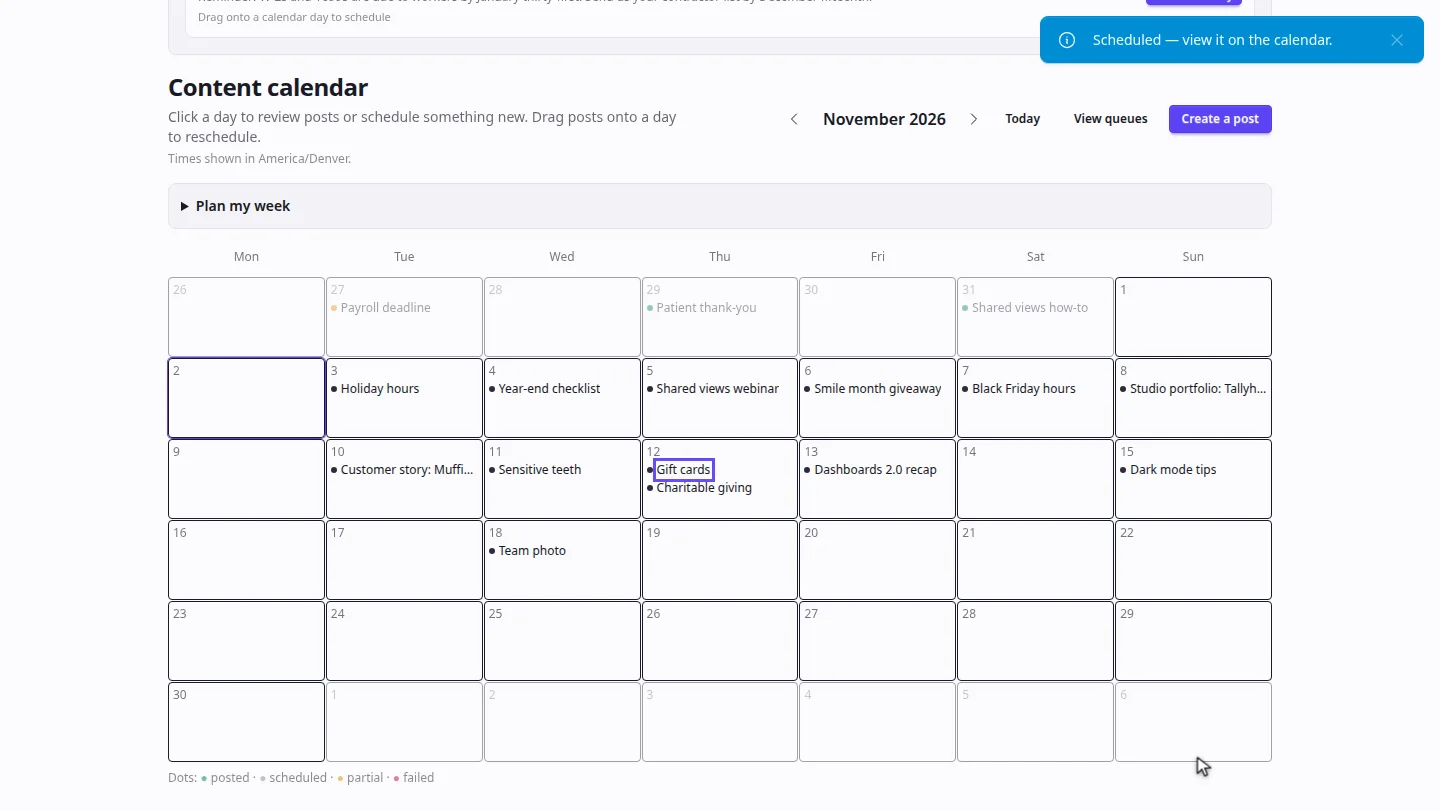
Select Schedule post. The post sits on the calendar until SocialYak publishes it.
Steps
Start a post for the client ▶ 0:07
In Clients, select Compose on the client's card. The composer shows Creating for and the client's name.
Write the post ▶ 0:13
Enter a Title (optional), write the post in What's happening?, then add an image under Media (optional).
Check the destinations ▶ 0:22
Select Continue to destinations. Untick any account that shouldn't receive the post.
Pick the date and time ▶ 0:30
Select Continue to delivery, choose Specific time, then set Publish date and time.
Schedule it ▶ 0:39
Select Schedule post. The content calendar opens with the post on the day you chose.
Next steps
Updated 2026-10-26
schedule social media post post later plan posts publish time