How to schedule a performance report in SocialYak
Instead of building a report for every client each month, schedule one. SocialYak emails a performance summary to the address you choose, for one client or for all accounts.
Before you start
- A Growth or Agency plan
- Owner or admin role in SocialYak
Preview voice Narrated with a local preview voice; the final recording replaces it.
Transcript
Email a client their social performance every month, automatically.
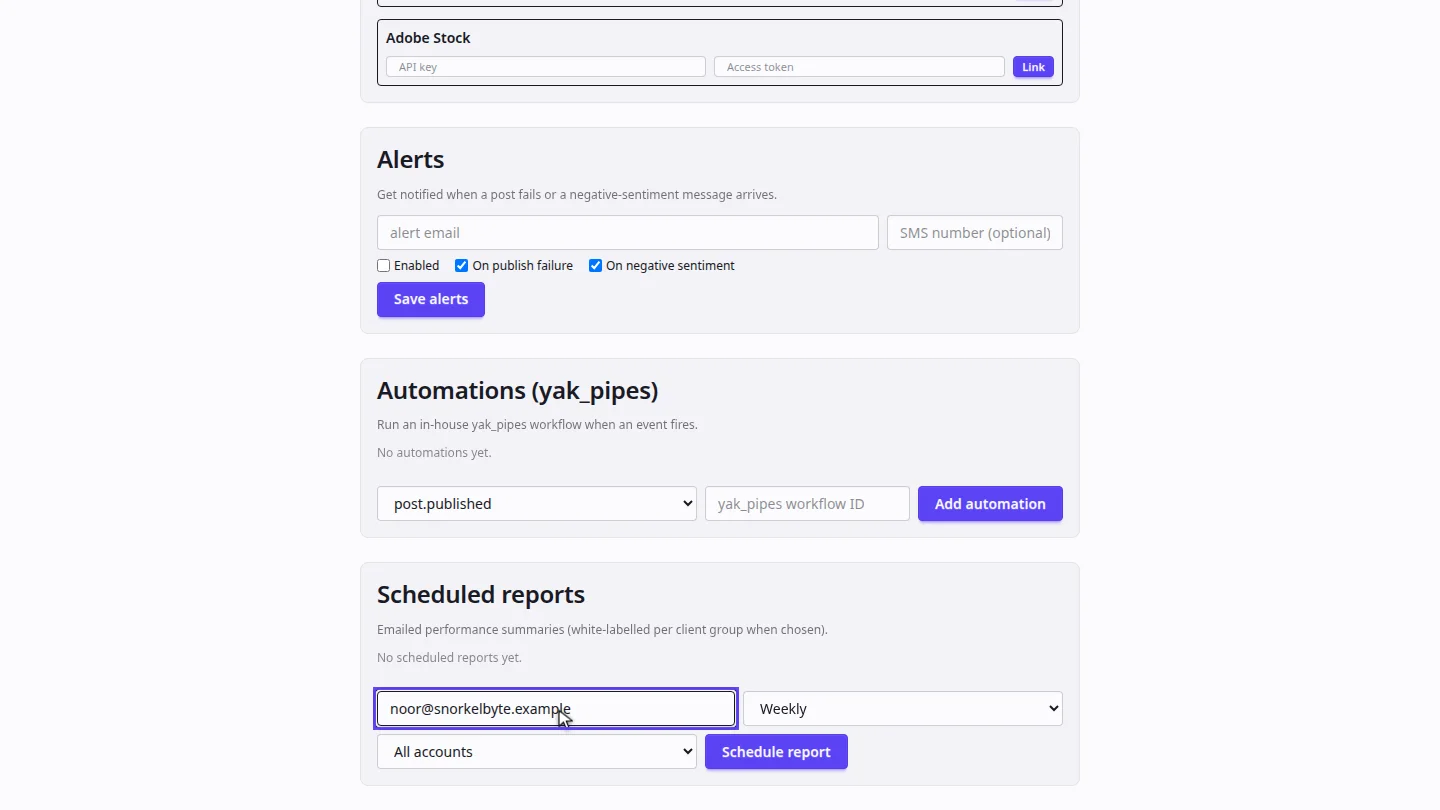
In Settings, open Publishing, and scroll to Scheduled reports. Enter the email address that should receive the report.
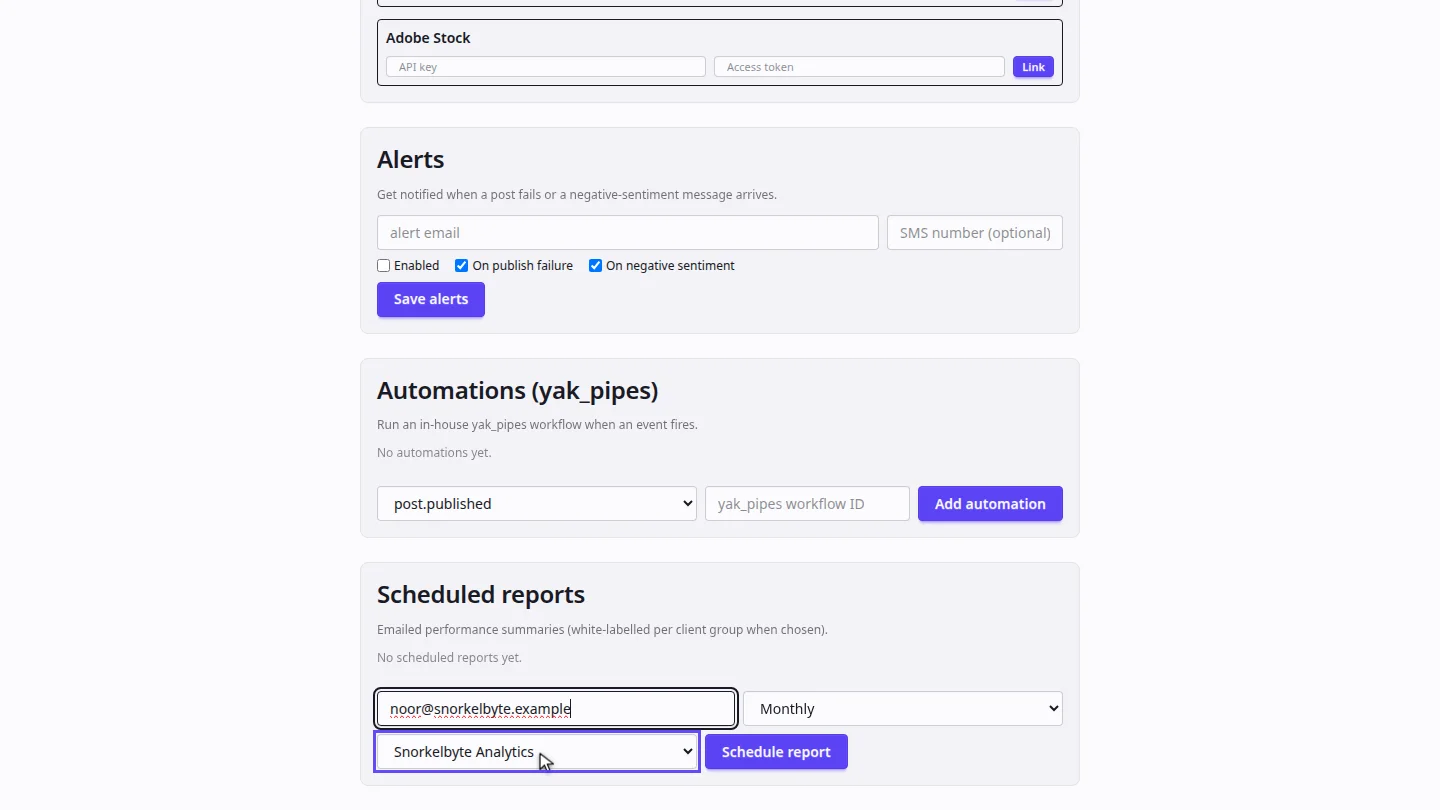
Choose how often it's sent, and which client it covers. All accounts sends one summary for the whole workspace.
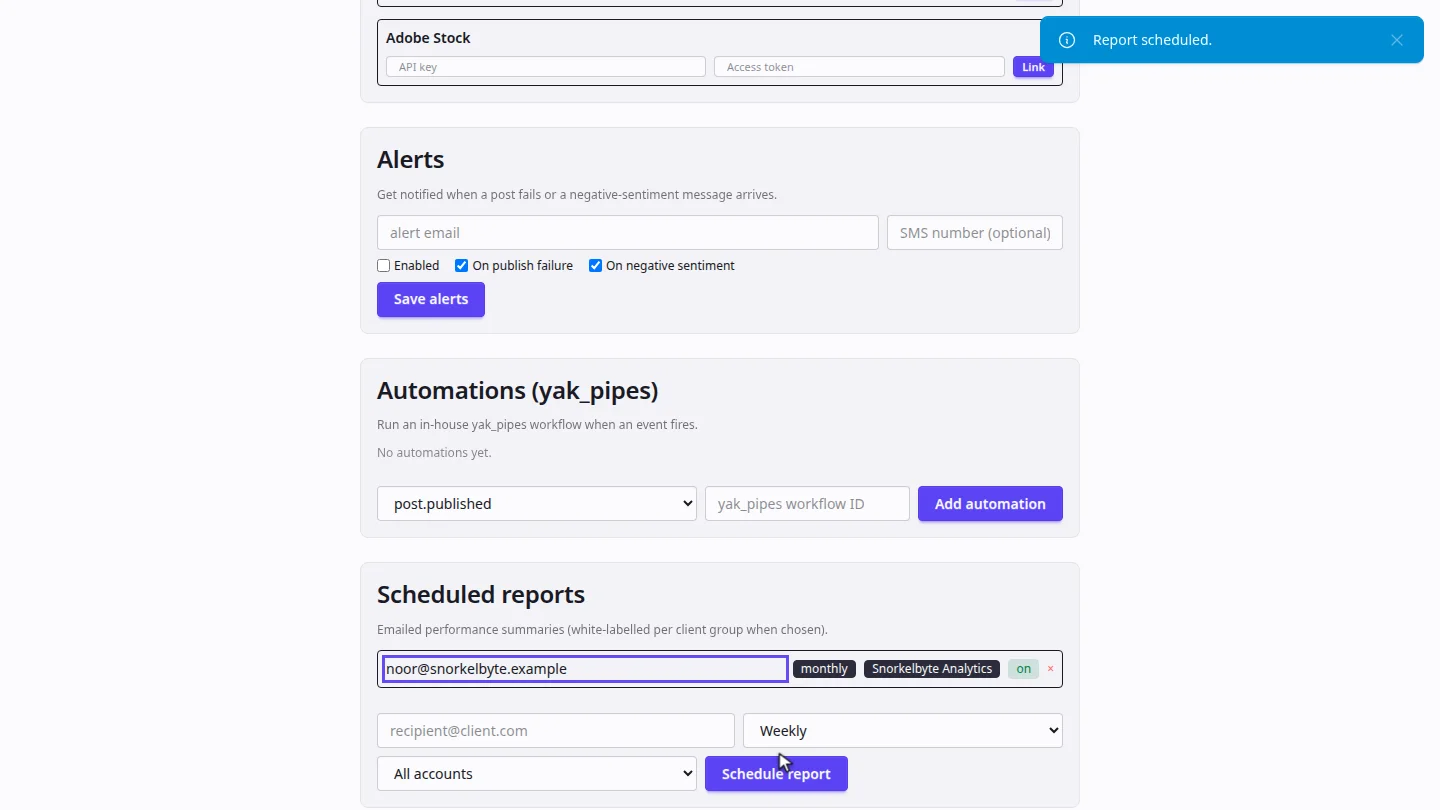
Select Schedule report. It's listed with its recipient, frequency and client, and you can switch it off or remove it at any time.
Steps
Add the recipient ▶ 0:06
Select Settings, then Publishing. Under Scheduled reports, enter the recipient's email.
Choose frequency and client ▶ 0:14
Choose Weekly, Daily or Monthly, then the client, or All accounts.
Schedule it ▶ 0:23
Select Schedule report. The report appears in the list.
Next steps
Updated 2026-10-26
client report email report monthly report automated reporting