How to request and approve a post in SocialYak
Some posts need a second pair of eyes before they go out. Submit a post for approval and it can't publish until an owner or admin signs it off on the Team page.
Before you start
- A Growth or Agency plan
- An owner or admin to approve
Preview voice Narrated with a local preview voice; the final recording replaces it.
Transcript
Hold a post until a teammate signs it off, then approve it in one click.
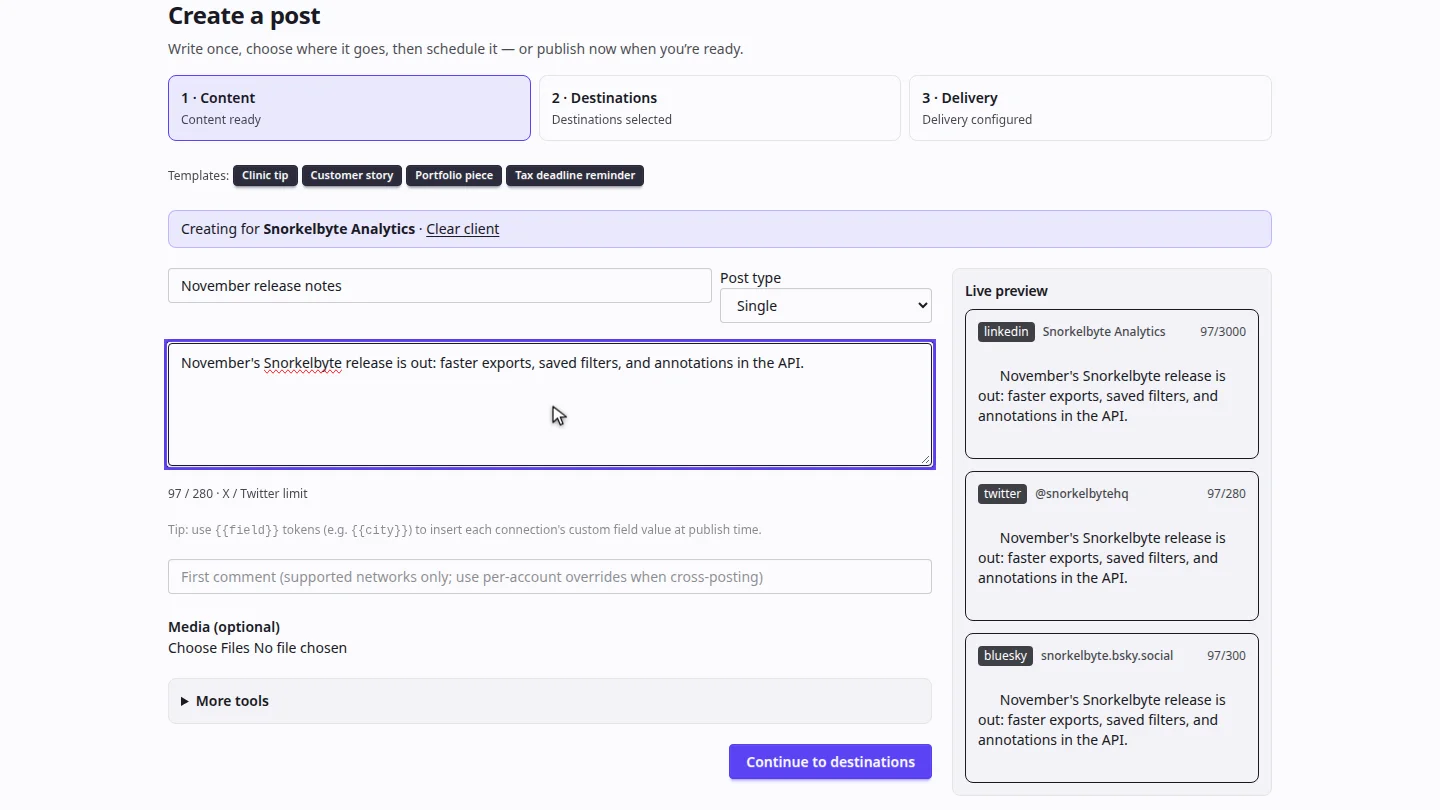
On Clients, select Compose on the client's card. Give the post a title, then write it.
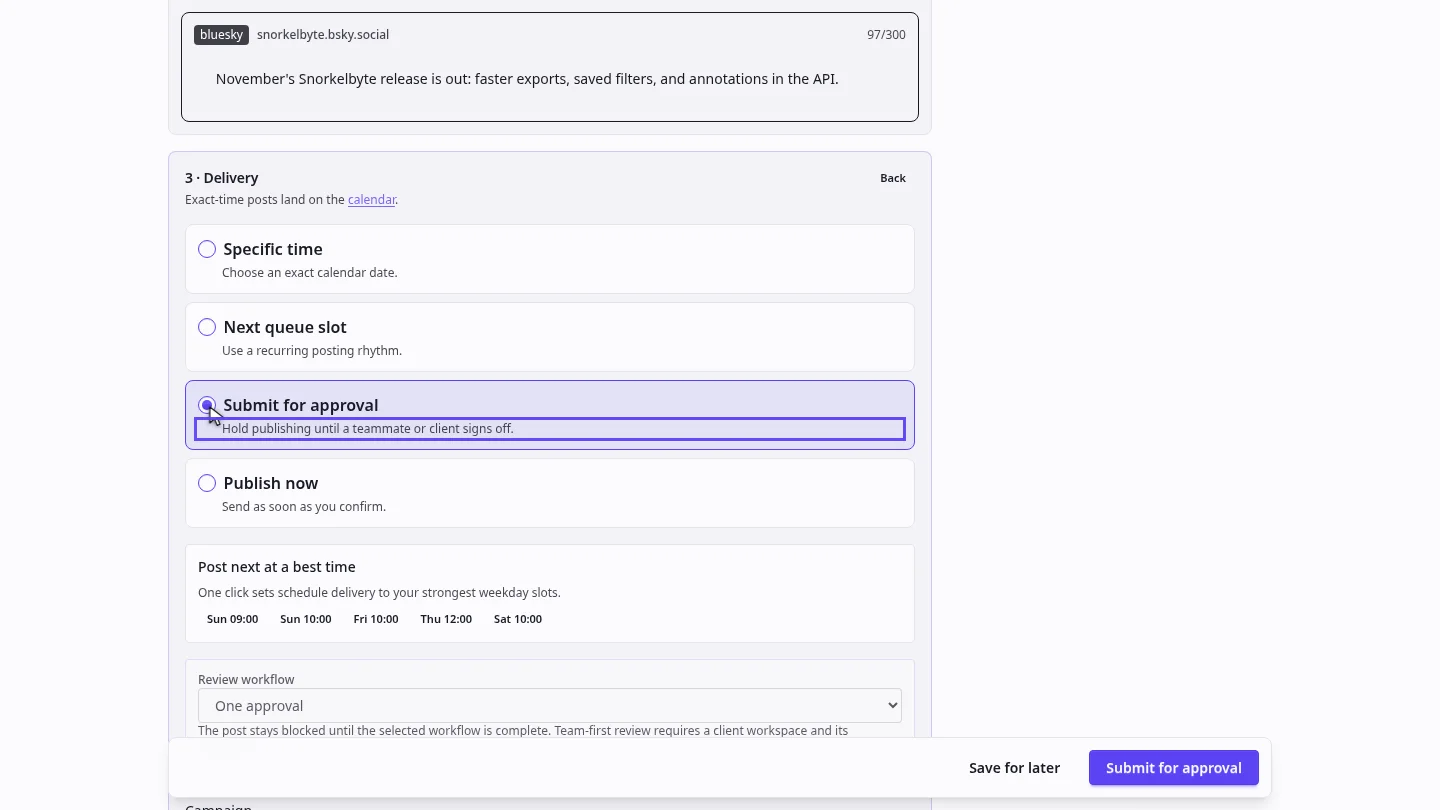
Continue through destinations to delivery. Then, for how it goes out, choose Submit for approval.
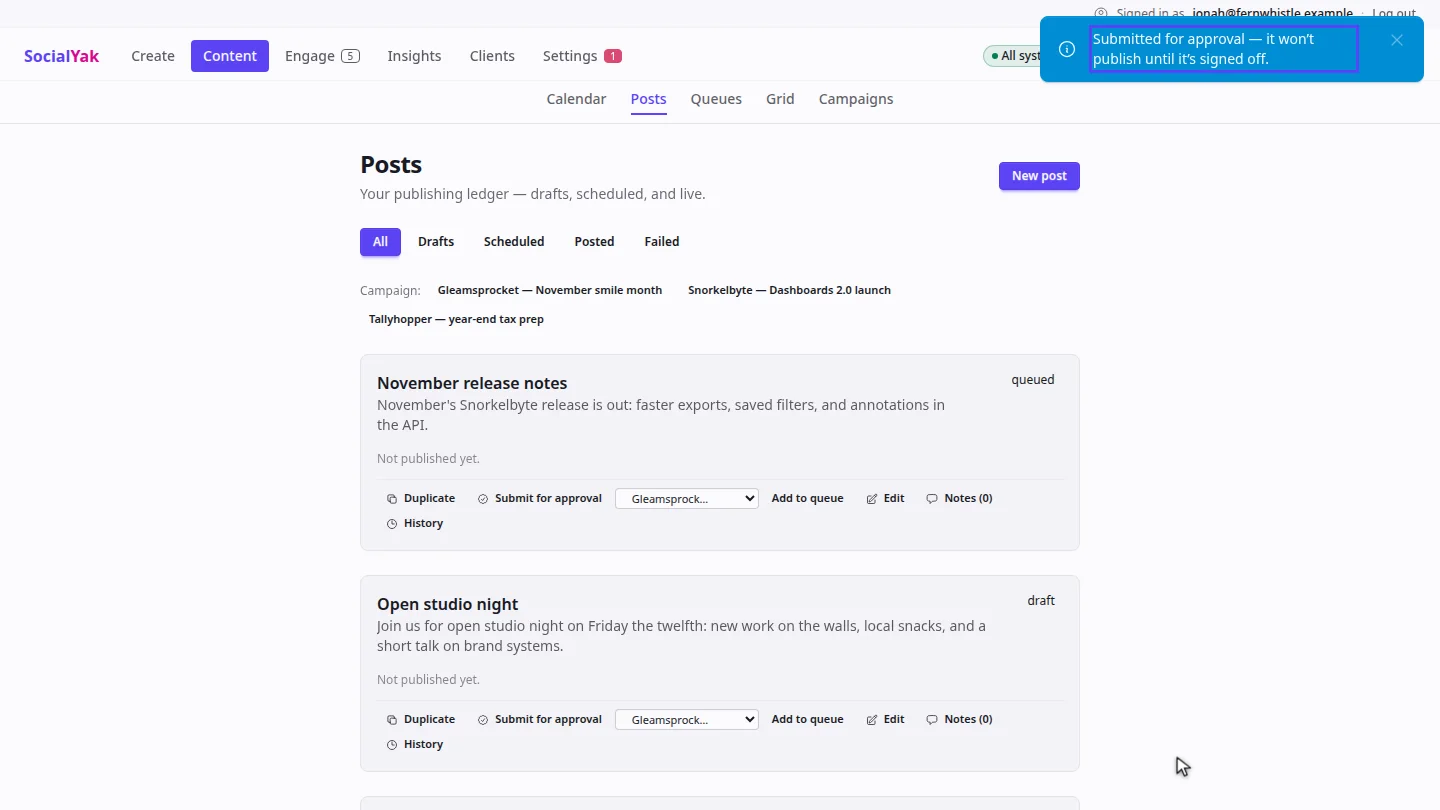
Select Submit for approval. Posts opens, and confirms that the post won't publish until a teammate signs it off.
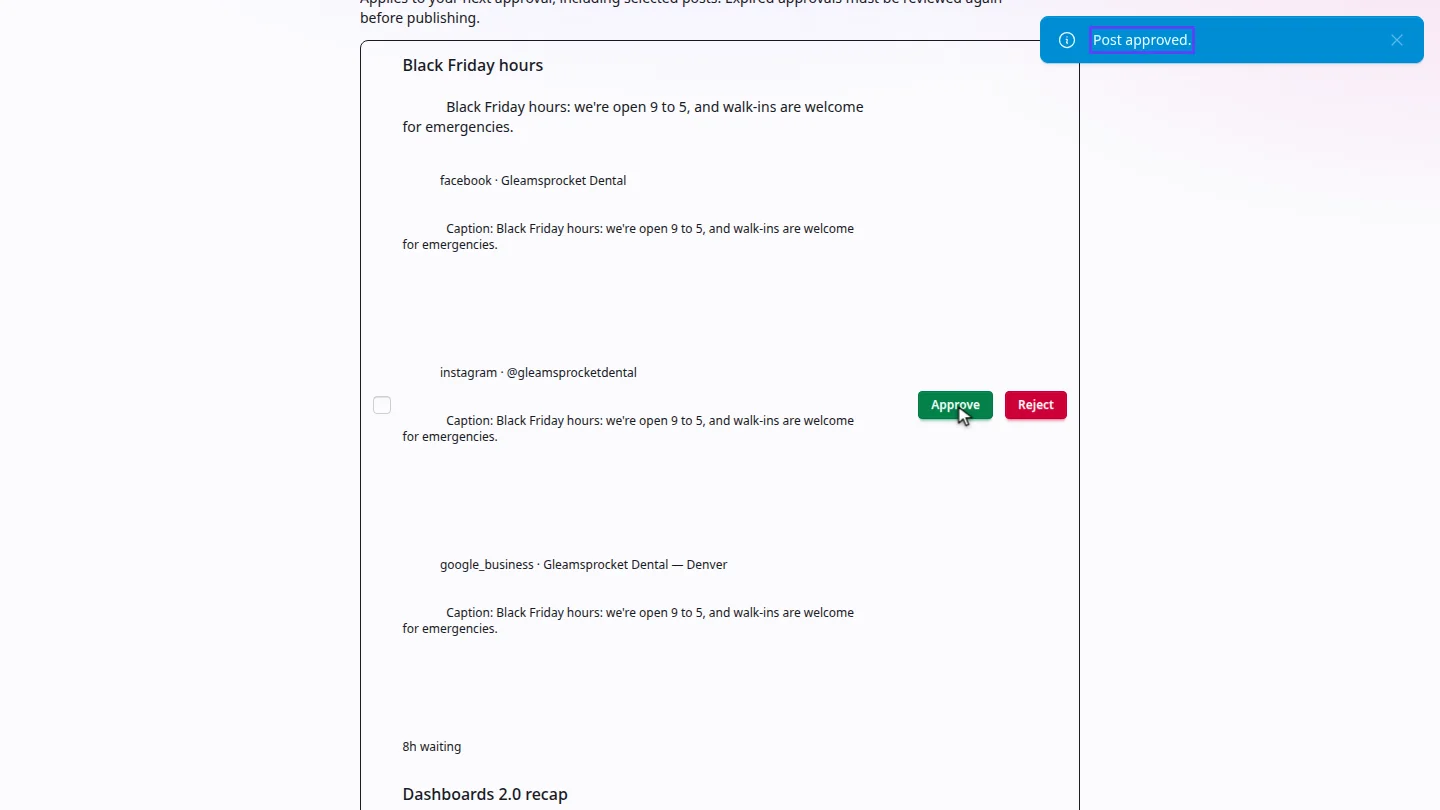
An owner or admin opens Team. Under Approvals, select Approve on the post. A post without a set time publishes straight away.
Steps
Write the post ▶ 0:06
In Clients, select Compose on the client's card, then write the post.
Choose Submit for approval ▶ 0:13
Select Continue to destinations, then Continue to delivery, and choose Submit for approval.
Submit it ▶ 0:20
Select Submit for approval at the bottom of the page.
Approve it ▶ 0:28
In Settings, open Team. Under Approvals, select Approve on the post.
Next steps
Updated 2026-10-26
approval workflow sign off review post approve post